科技
关于Apple HomeView音频的疑问,现已解答
中文译文
在我发布了对苹果首款智能显示器HomeView的评测后,大家仍然对它作为智能音箱的功能有很多疑问。因此,我又花了更多时间测试它的音频性能以及对第三方音乐应用的支持情况——过程中还发现了一些新的问题。以下就是大家所有疑问的答案。还有其他问题?我会在评论中解答。
与HomePod Mini、Sonos One和HomePod相比,HomeView的音质如何?
HomeView并非Sonos One、全尺寸HomePod或类似尺寸音箱的替代品,后者的音质要好得多。从尺寸和音质来看,HomeView更接近HomePod Mini。我将其与Mini 2(其音质略优于第一代Mini)进行了对比,发现这款桌面型HomeView的音质大致相当,但存在以下差异:HomeView的低音表现更好,音量也稍大一些,不过音质不够清晰,且无法像其他音箱那样充满整个空间。在这段视频中,你可以听到这两款产品实际播放的声音,同时还能看到全尺寸的HomePod、Sonos One以及壁挂式的HomeView:
两者的差异在于硬件配置。Mini 2配备一个全频驱动单元和两个被动辐射器,而桌面版的HomeView则在显示屏内装有两个驱动单元,其底座则配有低音单元和两个被动辐射器。虽然低音单元能增强音量,但HomeView的显示屏位于扬声器底座上方,部分遮挡了底座,这会影响其音质,相比Mini而言。苹果在显示屏中加入了加速度计,因为倾斜显示屏会改变音效,因此HomeView能根据倾斜角度实时调整其均衡器设置。不过,尽管Mini的音量没有那么大,但由于其360度环绕音效,它更能让整个房间充满声音。(HomeView支持杜比全景声的立体声技术,而Mini 2则不支持。)这款壁挂式HomeView仅有两个扬声器,苹果称其采用的计算音频技术是“专为壁挂安装而优化设计的”。它的音质尚可,但明显比桌面版更薄,且低音几乎不存在。就音质而言我不推荐它,但它非常适合通过视频门铃与访客交谈。
可以将两台HomeView配对以实现立体声效果吗?
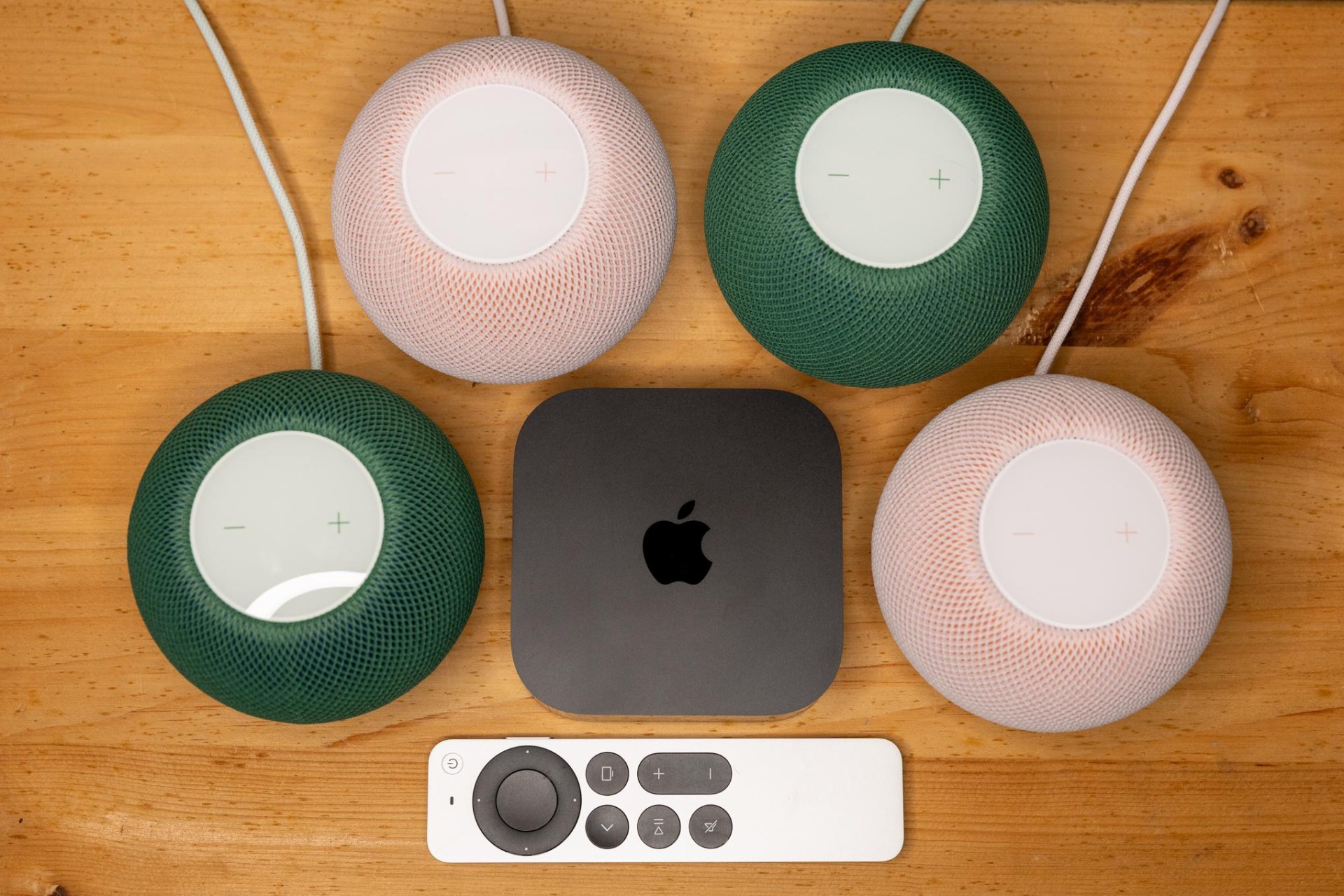
不能。虽然你可以将HomeView与其他任何AirPlay音箱组合,以便同时播放音乐,但你无法将两台HomeView配对形成立体声系统,也无法将HomeView与HomePod或Mini配对。我喜欢将两台Mini配对使用以获得立体声效果,我在办公室和卧室都采用了这种设置。它们还可以作为这些房间中Apple TV的扬声器使用。如果您有300美元用于购买音质出色的智能音箱,建议选择两台Mini而非HomeView。HomeView的真正优势在于它的屏幕。我在完整的评测中详细介绍了该屏幕的多种用途,但就音频功能而言,我喜欢它能够像点唱机一样,让用户轻松切换歌曲、选择新音乐以及浏览播客或有声书——而无需寻找硬币!使用HomePod时,则需要依靠Siri语音控制或苹果设备来选择内容。
可以将音乐/播客通过AirPlay传输到HomeView吗?音频接力功能是否可用?
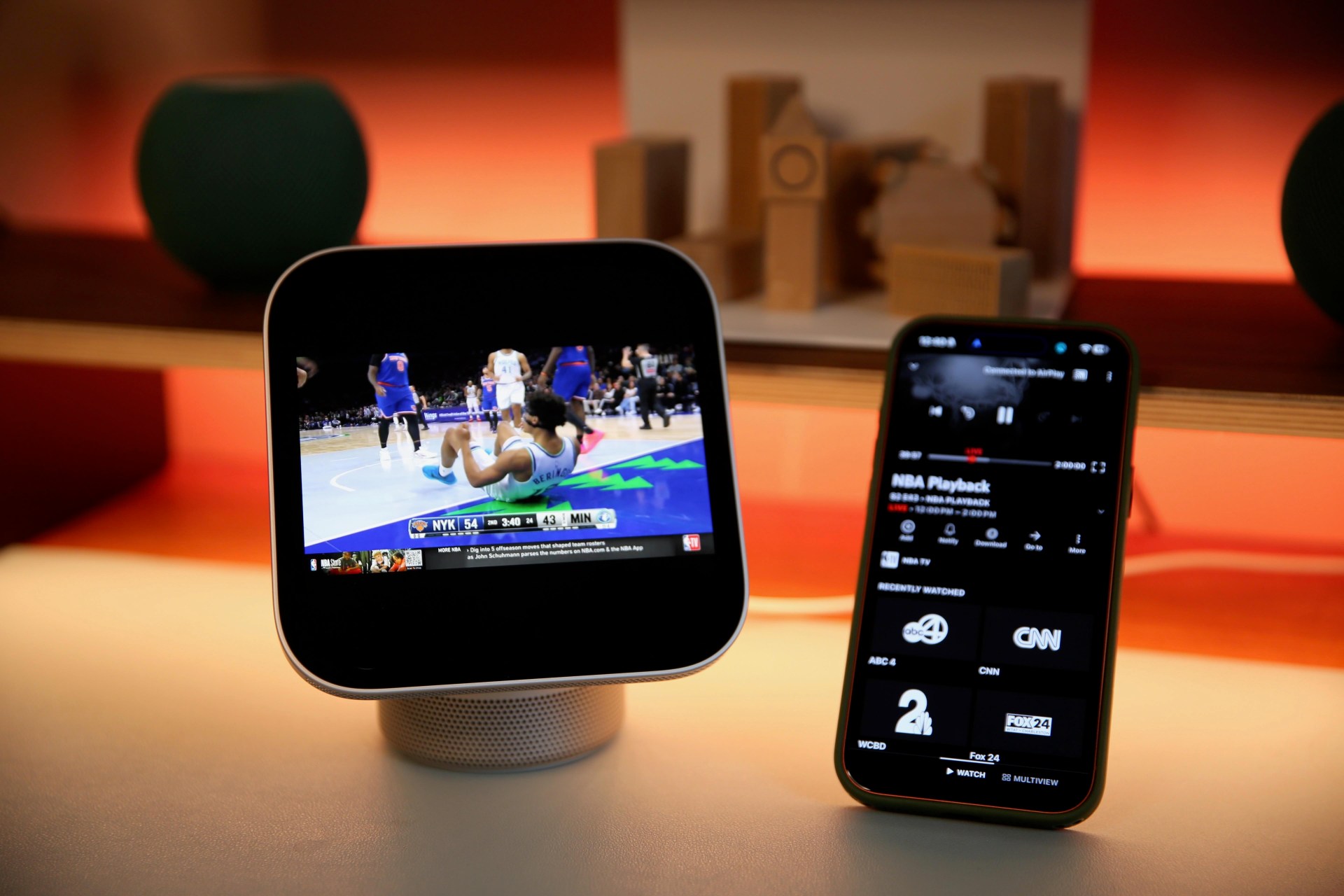
可以像其他支持AirPlay的音箱一样将内容传输到HomeView,音频接力功能也与在HomePod上的使用方式相同。将手机靠近HomeView,正在播放的内容就会同步到音箱和屏幕上。该功能也可以反向使用,将任何内容传回手机。HomeView还有一个新增功能:现在还可以进行视频接力。在测试中,Handoff功能在Apple TV、Apple Music、Apple Podcasts、Spotify、Pocket Casts、YouTube Music、FaceTime以及电话通话中均能正常使用——不过电话通话有时会出现断连情况。YouTube和YouTube TV的视频也能实现内容切换,尽管这些平台在HomeView上没有对应的应用程序。而Netflix和Amazon Prime Video仅能播放音频,尽管在Safari浏览器中可以播放视频。
需要提醒一点:Handoff功能较为主动。与HomePods类似,只要将手机保持在几英寸范围内,HomeView就会尝试切换内容。
能否为HomeView设置默认扬声器?
HomeView不允许用户设置默认扬声器或扬声器组来替代其内置扬声器。不过,你可以将音频发送到任何AirPlay支持的扬声器或扬声器组。我在HomePods、Sonos扬声器以及三星电视上进行了测试,功能运行十分顺畅。对于原生应用(Apple Music、Podcasts和Safari),HomeView会记住你上次使用的扬声器或扬声器组合,当你返回时便会自动通过这些扬声器播放内容。如果你已经有一段时间没有打开该应用,它会弹出选项让你选择上次使用的扬声器。
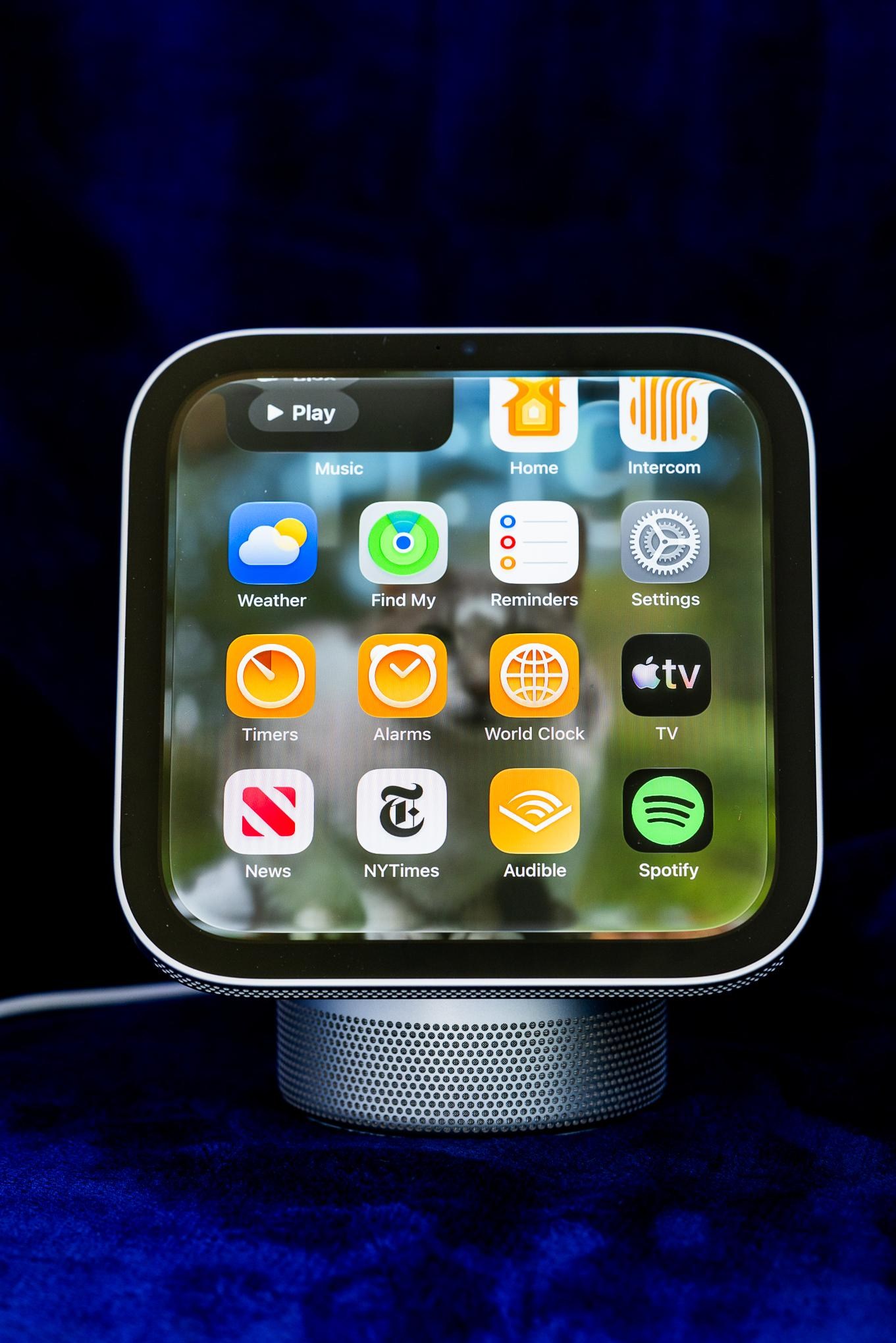
而对于Spotify和Audible这样的第三方音频应用,以及Apple News和Apple TV这类使用CarPlay界面的Apple应用,情况就复杂一些。只有当你从HomeView屏幕选择内容时,HomeView才会自动使用上次使用的扬声器。如果你使用Siri语音控制,它则默认使用HomeView的扬声器。于是,“嘿,Siri,播放Chappell Roan的《Femininomenon》”这句话让音乐从HomeView的扬声器中播放出来,而非从我办公室里用于播放Spotify的立体声设备中播放。我可以通过加上“在办公室”来指令它在那里播放音乐,但这样说起来比较繁琐,而只需说“嘿,Siri,播放Chappell Roan的《Femininomenon》”就够了,使用Apple Music时只需这么说即可。
这就引出了另一个大家经常问的问题——也是我对这款智能音箱最大的不满:它如何支持第三方音频应用?仿佛这些应用只是二等公民。
Spotify能在HomeView上使用吗?
Spotify可以在HomeView上使用,但存在所有非原生及第三方应用都有的限制:只有当你的手机通过个人资料连接到HomeView时,这些应用才会显示出来,因此只有你能使用它们。苹果在这里选择了捷径:它没有为应用开发者打造专用的HomeView体验,而是采用了苹果现有的CarPlay平台。这样一来,开发者就能更轻松地将自己的应用放到HomeView中——只要某个音频或视频应用支持CarPlay,它就能在HomeView上运行(其他类型的CarPlay应用则不支持)。
但实际上,这带来了诸多令人不满的限制,比如没有搜索功能,而且要求HomeView和手机处于同一Wi-Fi网络下,并且还需要用户拥有相应的账户profile。此外,与原生应用相比,其性能更差,体验也更为迟缓且不稳定。
我试用了几款应用:Pocket Casts、Amazon Music、YouTube Music、Spotify以及Audible。这些应用都出现在了HomeView的应用抽屉中,我可以通过简化的界面选择内容,然后在HomeView上播放音频,或通过AirPlay将其传输到任何扬声器上。不过,CarPlay应用的功能并不如内置的音频应用——音乐、播客和Safari那样出色。它们的加载速度更慢,响应也更为迟缓。此外,你无法像在原生应用中那样在这些应用中输入搜索查询,因为它们没有搜索框或键盘。相反,你必须滚动浏览内容来找到所需内容,或者使用Siri语音搜索。
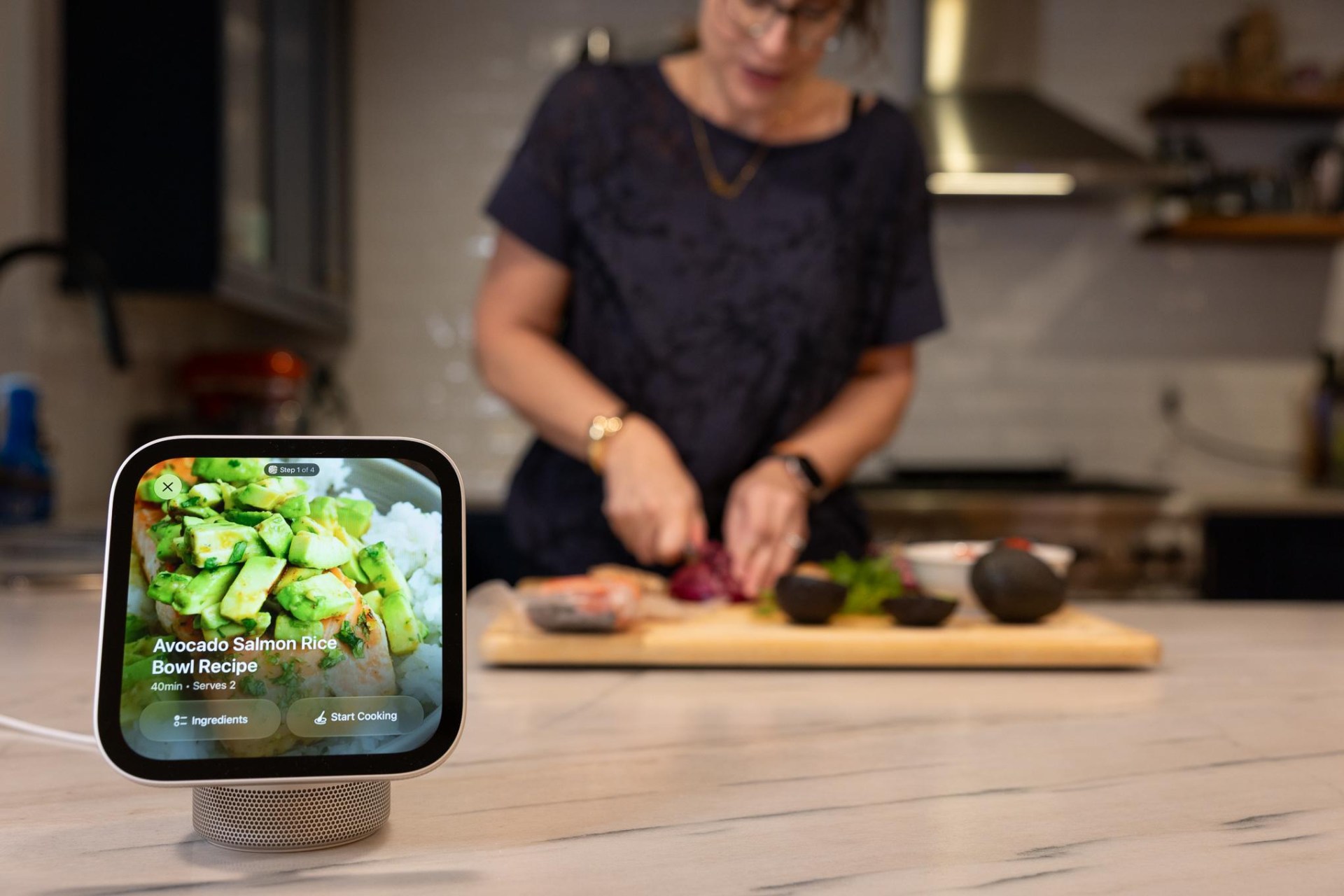
之所以没有搜索框,是因为驾驶时不应输入文字;不过我现在又不是在开车——我是在厨房里!这恰恰体现了这些应用在CarPlay平台上的局限性;它们并未经过更新,以适应该设备处于静止状态且位于家中的使用场景。举例来说,当我首次打开Apple TV应用(目前唯一受支持的CarPlay视频应用)时,会出现一个警告,提示我在观看视频前确保设备处于静止状态。通过CarPlay应用播放音频也存在问题。它并不总是会显示音乐控制界面,因此我不得不使用iPhone来控制音乐播放。此外,Audible应用经常无法加载,也无法通过Siri语音搜索来操作。我说:“Siri,继续播放我的Audible有声书。”Siri却回应:“正在随机播放Apple Music中的最新歌曲。”
CarPlay支持似乎只是权宜之计,苹果需要与开发者合作,优化软件,并为HomeView添加专门的控制功能,从而提供更出色、更整合的使用体验。
是否应该购买HomeView作为智能音箱?
关于HomeView的诸多困惑源于人们将其视为智能音箱,而实际上它是一款智能显示器。我明白这种困惑;在过去的十年里,我一直对谷歌和亚马逊推出的智能显示器感到失望,它们虽然承诺很多功能,但很少能很好地实现所有功能。
苹果HomeView如果您不关心智能显示器的其他功能,只想要一个智能音箱,那么相比HomePod选择HomeView的理由在于它可以作为触摸屏音乐控制器使用。这样家中的任何人都能轻松浏览并控制正在播放的音乐。不过请注意,只有Apple Music(需订阅)是可以在HomeView上播放音乐的唯一应用,因为CarPlay应用需要用户账号。
Apple HomePod Mini 2
如果您主要希望用智能音箱播放音乐,并且愿意通过语音或手机来控制它,那么选择HomePod更为合适。如果您使用Spotify或其他第三方音乐服务,可以考虑Echo Dot或Google Home智能音箱;这两种音箱都允许您设置默认音箱和默认音乐服务提供商,比如Spotify。
如果您已经拥有HomePod并且使用Apple Music,那么HomeView的触摸屏可以作为一种简单的音频控制方式。只是不要期望它能完全替代专用的智能音箱。
原文
After I published my review of the HomeView, Apple’s first smart display, y’all still had a ton of questions about how it works as a smart speaker. So, I spent a bunch more time testing its audio capabilities and support for third-party music apps — and found a few more frustrations along the way. Here are the answers to all your burning questions. Have more? I’ll answer them in the comments.
How does the HomeView sound compared to the HomePod Mini, Sonos One, and HomePod?
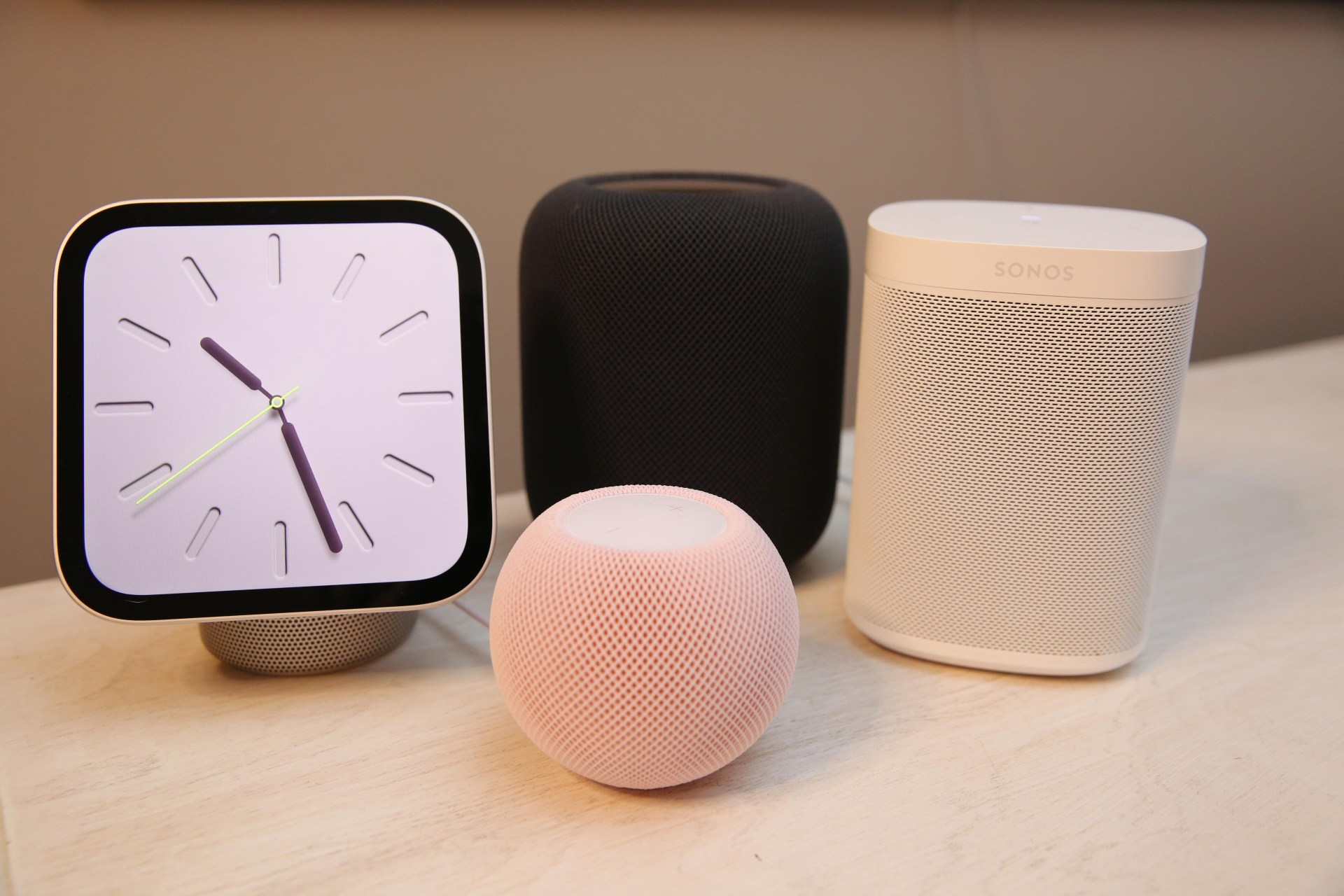
The HomeView isn’t a replacement for a Sonos One, a full-size HomePod, or a similar-size speaker. Those are much better speakers. In size and sound, the HomeView is closer to the HomePod Mini. I tested it alongside the Mini 2 (which sounds marginally better than the first-gen Mini) and found the tabletop HomeView mostly comparable, with these caveats: The HomeView has better bass and is slightly louder, but it’s not as clear and is less room-filling.
You can hear them both in action in this video, alongside the full-size HomePod, the Sonos One, and the wall-mounted HomeView:
The difference comes down to the hardware. The Mini 2 has a single full-range driver and two passive radiators, whereas the tabletop HomeView has two drivers in the display, plus a woofer and two passive radiators in its base. While the woofer adds some oomph, the HomeView’s display, which sits over the speaker base, partly covers it, affecting the sound compared to the Mini. Apple added an accelerometer to the display because tilting it changes the sound, so HomeView adjusts its EQ in real time based on the angle. Still, the Mini, while not as loud, fills a room better, thanks partly to its 360-degree sound. (The HomeView supports Spatial Audio with Dolby Atmos, which the Mini 2 doesn’t.)
The wall-mounted HomeView has only two drivers, with computational audio Apple says is “tuned specifically for on-wall placement.” It sounds fine but is noticeably thinner than the tabletop version, and bass is basically non-existent. I wouldn’t recommend it for its sound quality, but it’s great for talking to a visitor through your video doorbell.
Can you pair two HomeViews for stereo sound?
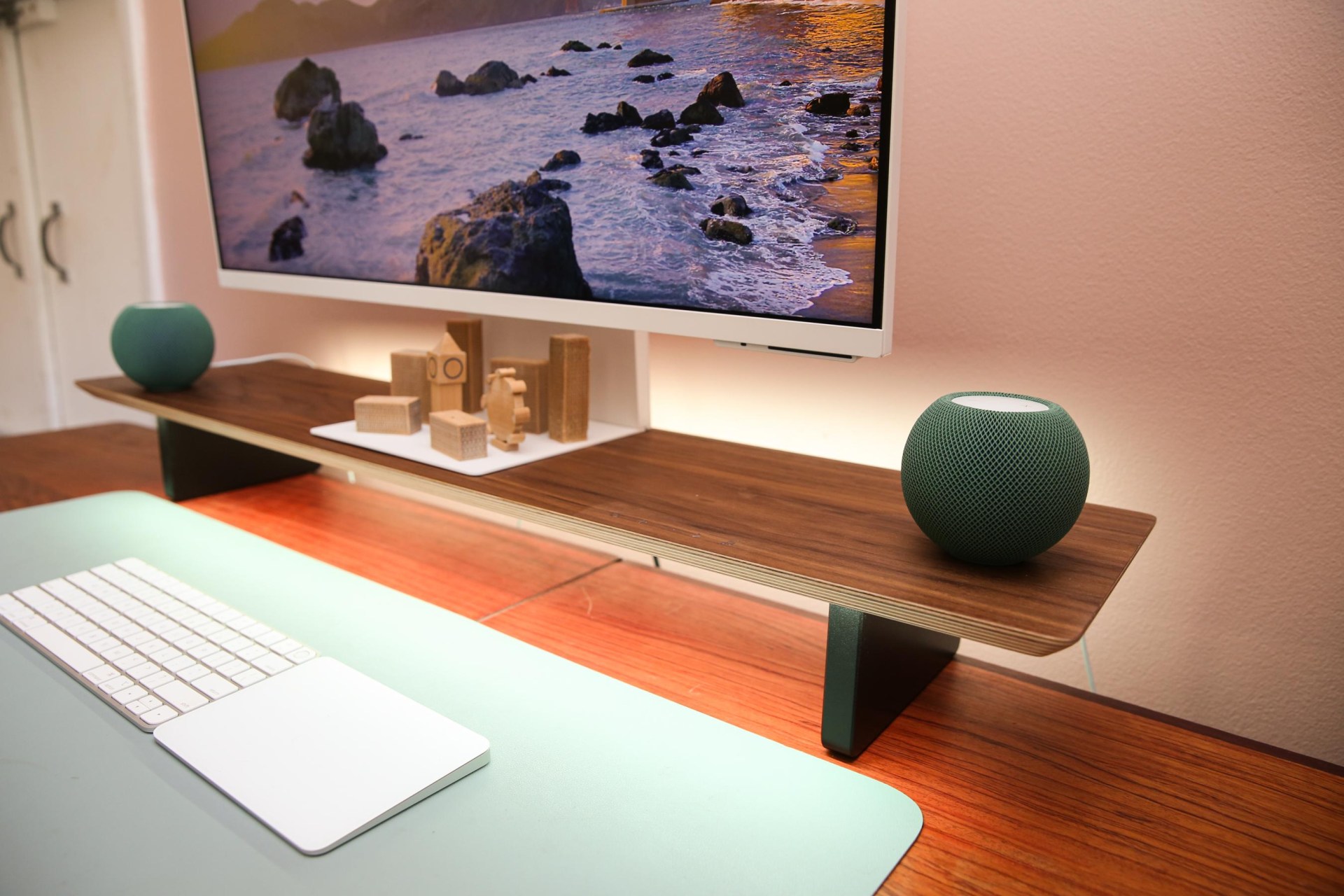
No. While you can group HomeViews with any other AirPlay speakers to play music out of them all at once, you can’t pair two for a stereo setup or pair a HomeView with a HomePod or Mini. I like the sound of two Minis paired in stereo and use this setup in my office and my bedroom. They also work as speakers for my Apple TVs in those rooms.
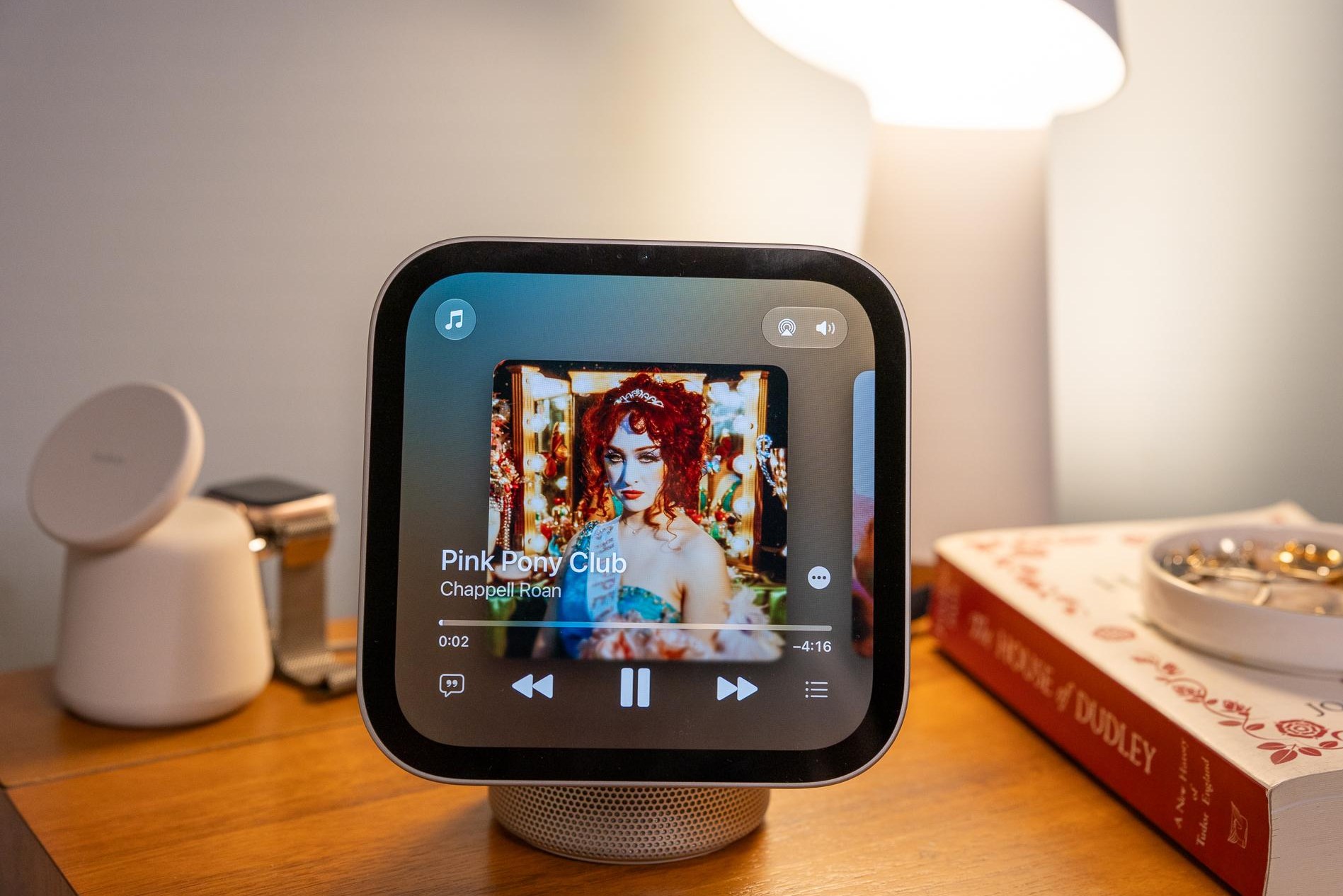
If you have $300 to spend on a good-sounding smart speaker setup, go with two Minis over a HomeView. The HomeView’s real benefit is the screen. I cover its uses extensively in my full review, but for audio in particular, I like that the screen acts like a jukebox, making it easy to change songs, select new music, and scroll through your podcasts or audiobooks — without needing to find a quarter! With a HomePod, you rely on Siri voice control or your Apple device to select content.
Can you AirPlay music/podcasts to the HomeView, and does audio handoff work?
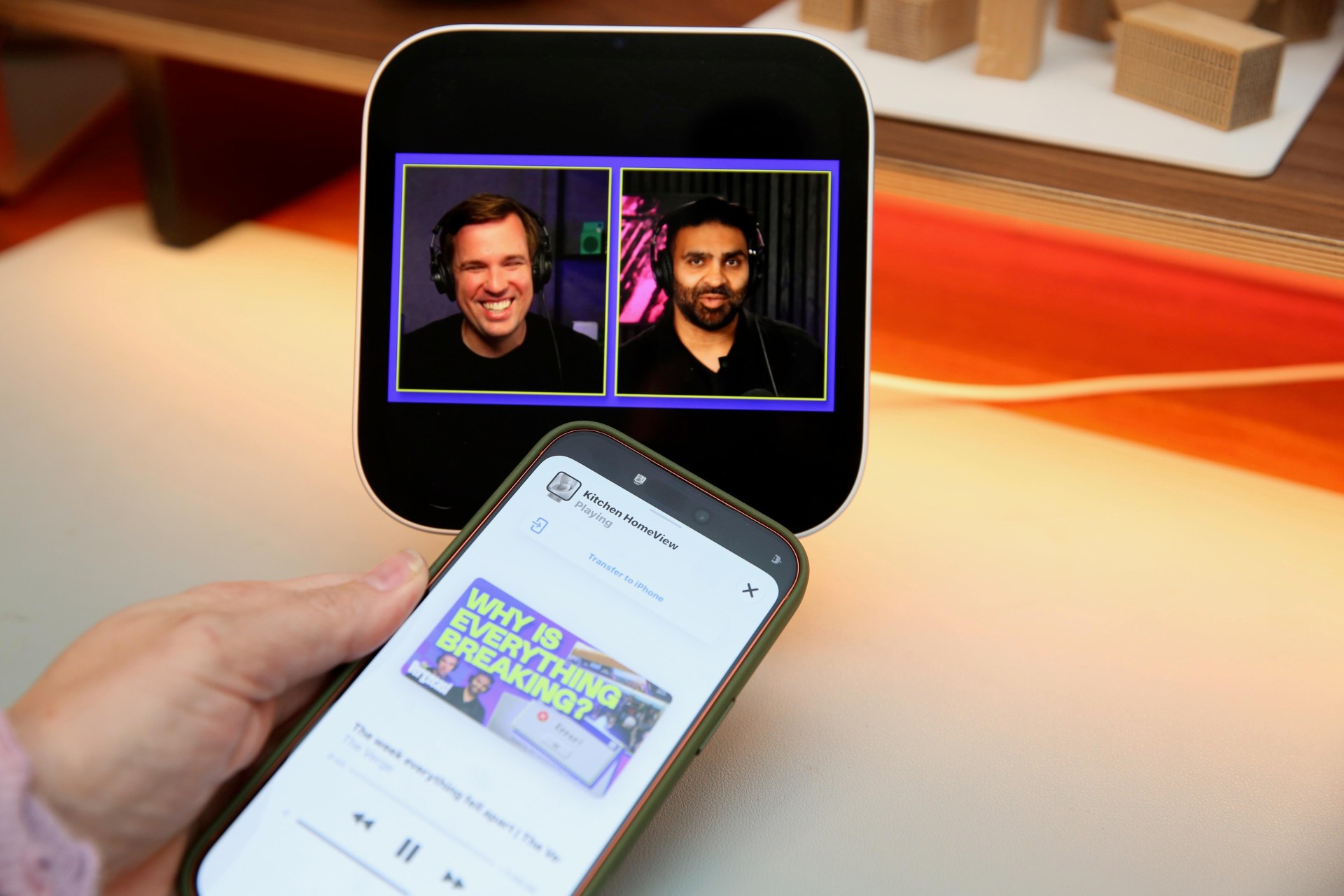
You can AirPlay to the HomeView as with any other AirPlay speaker, and audio handoff works the same as it does on HomePods. Tap your phone to the HomeView, and whatever is playing transfers to the speakers and the screen. Handoff also works in reverse, letting you send any content back to your phone. One addition with the HomeView: You can now hand off video.
In testing, handoff worked for Apple TV, Apple Music, Apple Podcasts, Spotify, Pocket Casts, YouTube Music, FaceTime, and phone calls — although phone calls sometimes dropped. YouTube and YouTube TV videos also handed off, even though they don’t have an app on the HomeView. But Netflix and Amazon Prime Video only played audio, though both played video in the Safari browser.
One word of caution: Handoff is aggressive. As with HomePods, if you’re holding your phone within a few inches, the HomeView will try to hand off content.
Can you set a default speaker for the HomeView?
HomeView doesn’t let you set a default speaker or group to use instead of its built-in speaker. However, you can play audio to any AirPlay speaker or group of speakers. I tested this on HomePods, Sonos speakers, and a Samsung TV, and it worked smoothly.
For native apps (Apple Music, Podcasts, and Safari), the HomeView remembers the last speaker or speaker pair you used and automatically plays content through those when you return. If it’s been a while since you opened the app, it pops up the option to choose the last-used speakers.
Things get messier with third-party audio apps such as Spotify and Audible, and with Apple apps that use the CarPlay interface, such as Apple News and Apple TV. The HomeView only automatically uses the last speakers if you choose content from the HomeView screen. If you use Siri voice control, it defaults to the HomeView speaker.
So, “Hey Siri, play ‘Femininomenon’ by Chappell Roan from Spotify” played music from HomeView’s speaker and not the stereo pair of Minis in my office, where I’d last been listening to Spotify. I could direct it to play music there by adding “on Office,” but that’s more of a mouthful than just “Hey Siri, play ‘Femininomenon’ by Chappell Roan,” which is all you need to say if you use Apple Music.
Which brings me to another one of your most-asked questions — and my biggest complaint about this device as a smart speaker: How does it support third-party audio apps? Like second-class citizens.
Does Spotify work on the HomeView?
Spotify works on the HomeView, but with limitations that apply to all non-native and third-party apps: they only show up when your phone is connected to the HomeView via your profile, so only you can use them.
Apple has taken a shortcut here: Rather than building a dedicated HomeView experience for app developers, the HomeView uses Apple’s existing CarPlay platform. This makes it easier for developers to put their apps on the HomeView — if an audio or video app supports CarPlay, it already works on the HomeView (there’s no support for other types of CarPlay apps).
In practice, this creates frustrating limitations, including no search function and the need for a user profile on the HomeView and your phone on the same Wi-Fi. It also results in slower performance and a laggy, inconsistent experience compared to the native apps.
I tried several apps: Pocket Casts, Amazon Music, YouTube Music, Spotify, and Audible. They all appeared in my HomeView app drawer, and I could access them, choose content via streamlined interfaces, and then play audio on the HomeView or AirPlay from it to any speakers.
But CarPlay apps don’t work as well as the built-in audio apps — Music, Podcasts, and Safari. They take longer to load and respond more slowly. You also can’t type a search query in any of them, as you can in the native apps, because they don’t have a search field or keyboard. Instead, you have to scroll through content to find what you want or use Siri voice search.
There’s no search box because you’re not supposed to type while driving; only I’m not driving — I’m in my kitchen! This shows how much of a CarPlay port the apps are; they haven’t been updated to account for the fact that this device is stationary and in your home. Case in point, when I first pulled up the Apple TV app (the only CarPlay video app currently supported), a warning popped up telling me to make sure I was stationary before watching any video.
Playing audio through CarPlay apps is also buggy. It didn’t always bring up the music control screen, so I had to use my iPhone to control it. Plus, the Audible app often refused to load at all and didn’t work with Siri voice search. Me: “Siri, resume my Audible book.” Siri: “Shuffling latest songs from Apple Music.”
CarPlay support feels like a stopgap, and Apple needs to work with developers to refine the software and add HomeView-specific controls for a better, more integrated experience.
Should you buy a HomeView as a smart speaker?
Much of the confusion around the HomeView stems from treating it like a smart speaker when it’s really a smart display. I get it; I’ve spent the last decade frustrated by smart displays from Google and Amazon that promise a lot but rarely do it all well.
Apple HomeView
If you don’t care about the other features of a smart display and just want a smart speaker, then the reason to buy a HomeView over a HomePod is if you have a use for it as a touchscreen music controller. This lets anyone in the household easily browse and control what’s playing. Bear in mind, though, Apple Music (with a subscription) is the only app anyone can use to play music on the HomeView, as CarPlay apps require a user profile.
Apple HomePod Mini 2
If you want a smart speaker primarily to play music and are happy using your voice or phone to control it, go for a HomePod. If you use Spotify or other third-party music services, consider an Echo Dot or Google Home smart speaker; both let you set a default speaker and a default music provider — such as Spotify.
If you already own HomePods and use Apple Music, the HomeView’s touchscreen will fit in nicely as a simple way to control audio. Just don’t buy one expecting it to fully replace a dedicated smart speaker.